
Menu
tech and non-tech tips
  • Home
  • General
  • Web Tips
    • Web development
    • PHP
    • zendframework
    • SocialEngine
    • SQL
    • javaScript
  • Internet
  • Free Web Tools
  • Contact Us
tech and non-tech tips
convert images to Text Using Google Drive

How to convert images to Text Using Google Drive-Free

Posted on 5th December 20215th December 2021 by Sijo Thomas

Let’s see how to convert images to Text Using Google Drive-Free. Google Drive is one of the most safest and genuine storage spaces to access all your files from any device. By using Google Drive, you will be able to store your personal and vital files like spreadsheets, documents, presentations, and many more. If you are willing to convert images to Text in Google Drive, then you would be able to do it for sure. You can take the help of the OCR feature to convert images to text as it is the vital tech to help you go paperless.

1. Scan Your Documents

The first step is to scan the documents that you would like to convert to text files. It would be better for you to note that Google Drive supports OCR for .jpg, gif, .png, and PDF files. You should always go for PDF format as it can help you in storing multiple files. Make sure you are preparing your files properly for OCR before proceeding further with the next steps. You should note that the file needs to be in better resolution with clear lighting and brightness. It is better to try Time New Roman text as it can give you better results. You should not try to use OCR on the non-Latin characters which will be not clear and will not offer desirable results. You need to check the format of your file before you upload it. If the document you would like to use is physical, then try to scan them first.

2. Upload documents to Google Drive

Now, you need to upload documents to Google Drive for OCR. If you want to add your documents to Google Drive, then you should check out your Google Drive account first. Just go to the My Drive page, click the My Drive button, and select Upload files.

A group of people sitting in the sand Description automatically generated with medium confidence

Figure-1: Original Image

3. After completing the Uploading, you need to right-click on the file you need to convert from image or PDF to text and choose the option [open with -> Google Docs]
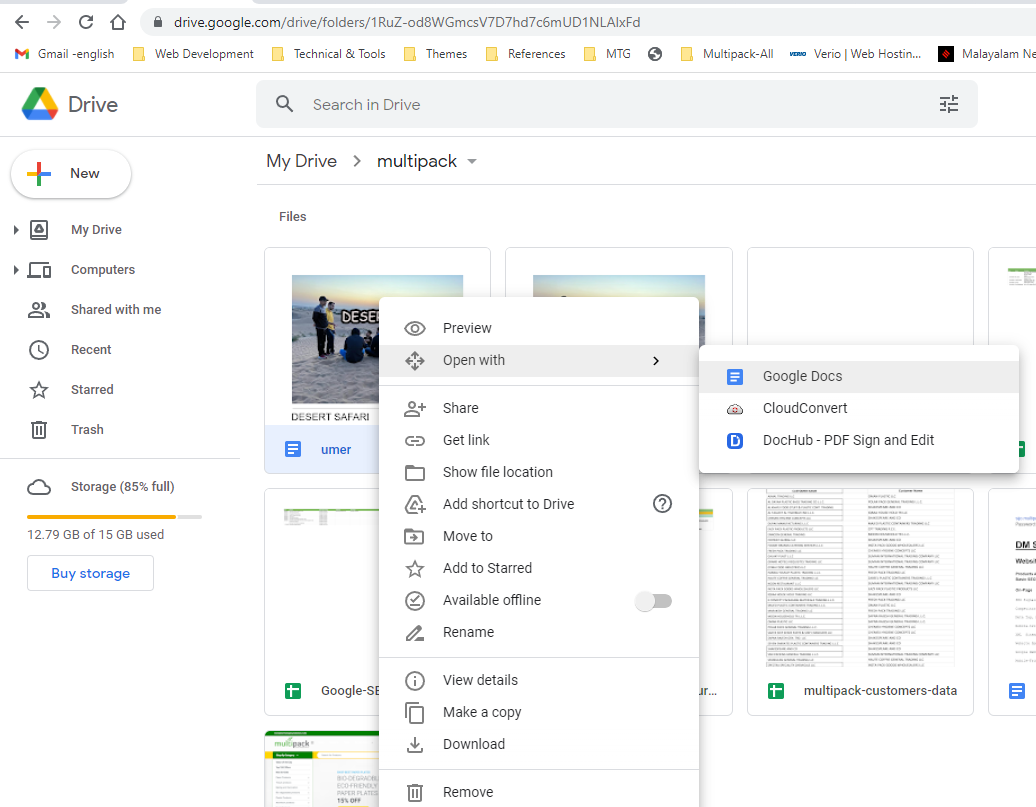
Graphical user interface, text, application Description automatically generated

Figure-2

At the time of opening, there will be a sheet loading icon can see.
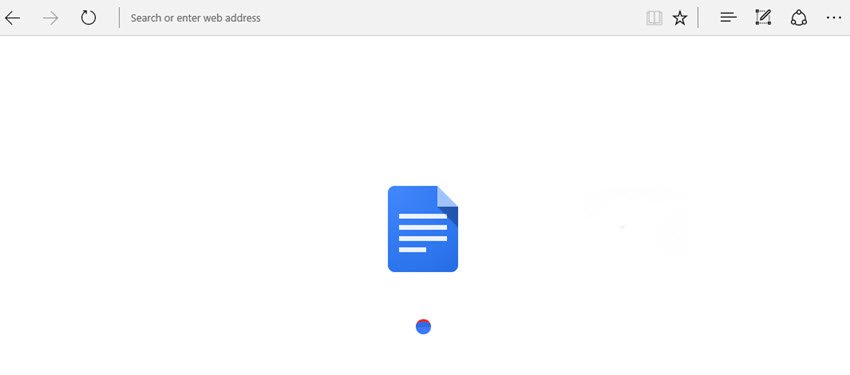
Graphical user interface, application, Teams Description automatically generated

Figure-3

4. This means that Google is now in the process of converting your image file to text with OCR Technology.
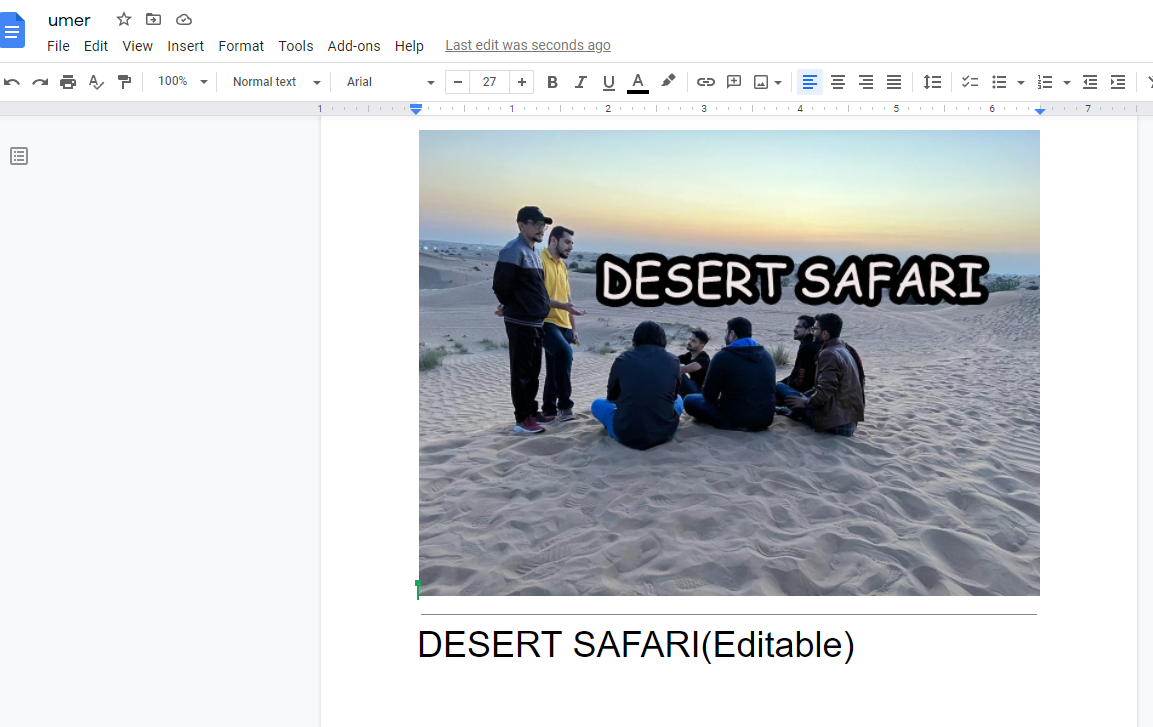
Graphical user interface, application Description automatically generated

Figure-4: Image with Editable text

After converting images to text in Google Docs, you can even edit the text as per your requirements.

Google Drive’s OCR feature is easy and powerful to work with and you would be able to take any PDF file and convert it into a text document. There is a big advantage to using OCR in Google Drive is that you would be able to share the new documents with your friends or relatives. For doing this, you just need to click on File and select Share. After selecting share, you can start adding collaborators by sending an invitation via email or by sharing a link.

At last, you can take the help of Google Drive to convert images and PDF files to text for free. These converted files can be exported or shared to several other file formats at any time. Just try using it and share your experiences here now!

Post Views: 704

Related posts:

  1. Google launched Shoploop, an interactive video shopping Platform
  2. Google Tone Transfer-New Google tool Can turn any Sounds into Music
  3. How to make money through Google Task Mate-Information Gathering Tool
  4. How to Delete E-mails with Large attachments in Gmail in One Step?
  • convert an image to text in Google Docs
  • convert image to text microsoft word
  • convert image to text online
  • Convert PDF and photo files to text
  • Google Drive have OCR
  • google drive ocr
  • how to convert image to document in android
  • how to convert image to pdf in google drive in mobile
  • how to convert image to text in mobile
  • image to text converter
  • image to text converter google
  • Leave a Reply Cancel reply

    Your email address will not be published. Required fields are marked *

    Categories

    Android Apple MacBook Pro Artificial Intelligence(AI) Automobile Banking Business Computer Cybersecurity Digital Marketing Etisalat Finance Gaming General General Knowledge Google Health and Medicine Hosting Instagram-Reels Instagram Tips Internet iPhone Malayalam Microsoft Mobile Phones Movies Networking News Photoshop Tips PHP PUBG Mobile SEO SMO Softwares Technology TikTok Travel and Tourism UAE Guidelines uae news Web development Website Development Web Tips WhatsApp Windows windows 10 wordpress
    •  Cybersecurity tips for small businesses
      by Smart Techie
    •  How to make a Virtual Zero Balance Bank Account in India
      by Sijo Thomas
    •  Most Popular Foods in America
      by Smart Techie
    • 10 Steps to Building a Solid Data Management Plan
      by Sijo Thomas
    • 10 Ways to Tell I am Not Coming to Office Today
      by Smart Techie
    • 20 Years of World of Warcraft: How the MMO Keeps Reinventing Itself
      by Sijo Thomas
    • 3 Easy Ways to Grow Your Business Through Instagram
      by Sijo Thomas
    • 5 Best Jesus Piece Pendants
      by Smart Techie
    • 5 Best Search Engines in the World
      by Smart Techie
    • 5 Company Swag Ideas for Employees To Celebrate Corporate Wins
      by Sijo Thomas
    • 5 Free Vs Paid AI Tools
      by Smart Techie
    copyrights ©SWS 2017-2026
    ©2026 Internet Tips & Tricks | Powered by Superb Themes