

Have you ever considered how to Check computer specs? I know it’s sure. The two best possible ways are explained here. Of late, it is vital to go through your computer or laptop specifications before you proceed further for doing your task. By knowing the correct and exact specifications of your current computer, you will be able to execute any work without any hassle. Those who are not aware of their computer specification may end up facing issues if any technical issues arise later in their system. To be on the safer side, it is always better to have a clear knowledge of the computer specs without any second thoughts. If you are having a laptop or computer and you are curious to know about its specs, then you are at the right place. Here you would come to know about the vital steps you need to follow for checking your computer or laptop specs easily without wasting your precious time.
Through Search System Information
It is very simple to check your computer hardware specification by going to System information through search. It will give you all the information about your current version of Windows which you are currently running. Just need to type “System information” into the search field and click on System Information.
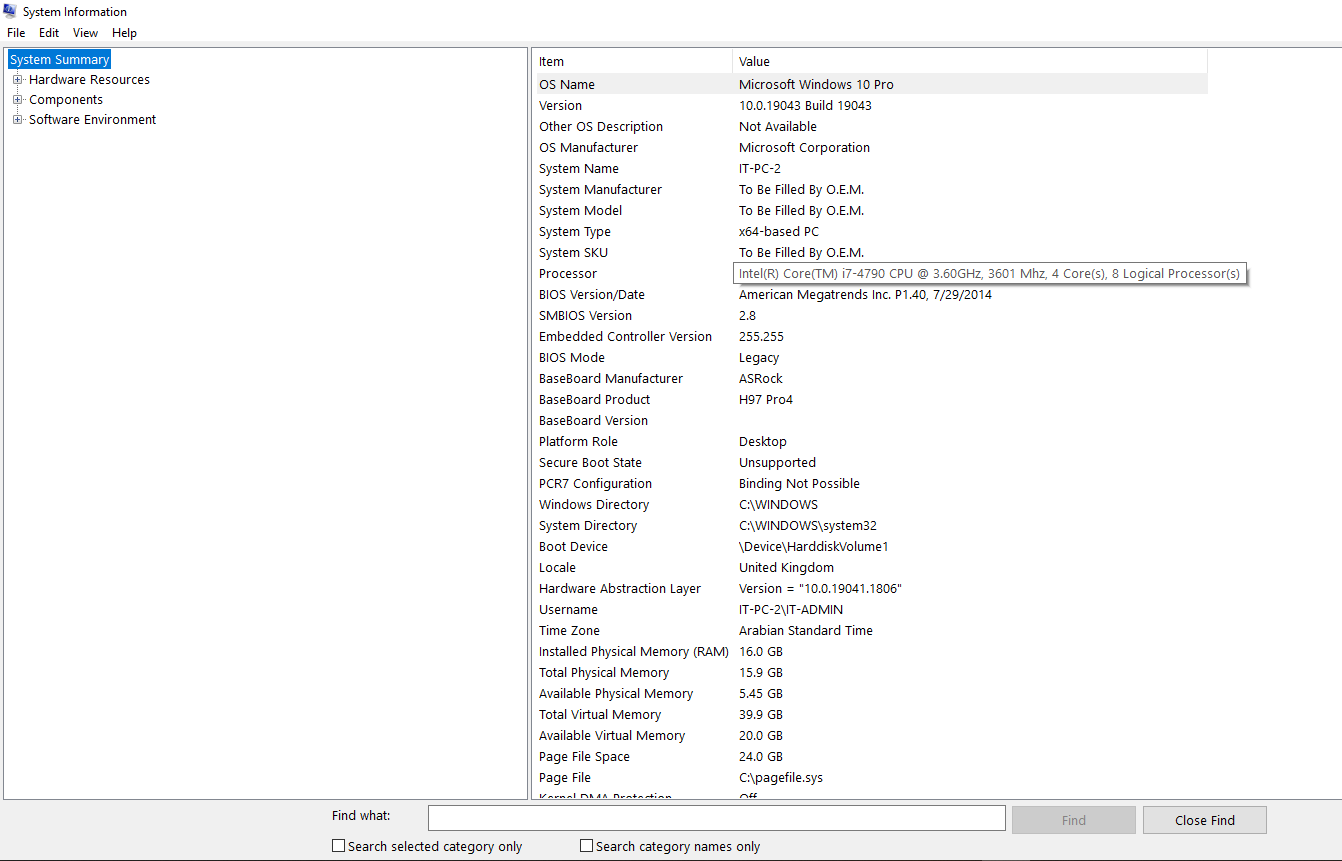
Make sure you are clicking on System Summary so that you will get a clear picture of your system specs without any hassle for sure. It is a very simple process and it will take less time than yours. You will get information about your processor, hardware, and various other drivers of your computer. By knowing about all those drivers, you will be able to update them later on if any issues arise for sure. It will help you in the longer run for the smooth performance of your computer.
Through Command Prompt / How to check computer specs using run
You can also check your computer specs by using the command prompt option. It is one of the most helpful and traditional ways of checking your computer specification and gives the exact results. Most of the users prefer using Command Prompt for knowing about their computer hardware and operating system version. You just need to follow a few steps before you proceed further to know about your system specs
- Put on your (helpful) hacker hat and type Windows + R to bring up your computer’s Run window.
- Enter cmd and press Enter to open the Command Prompt window.
- Type the command line systeminfo and press Enter.
- Your computer will show you all the specs for your system
- Just scroll through the results to find what you need.
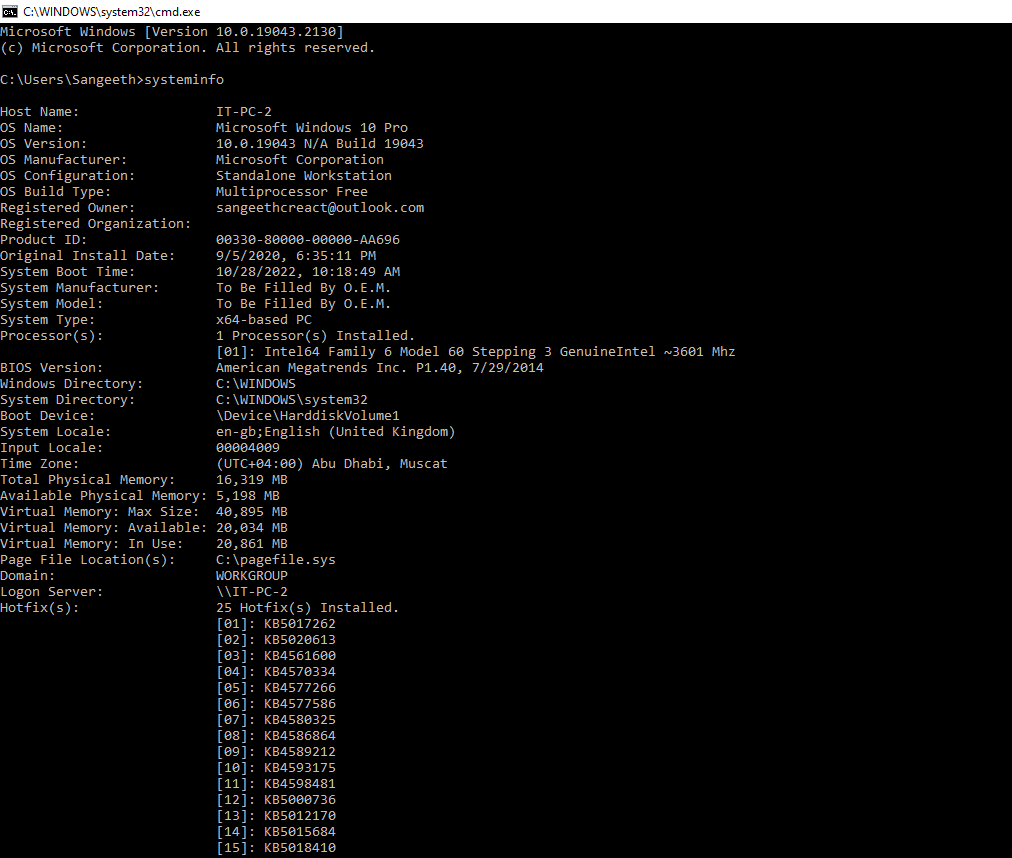
At last, you are aware of the steps you need to follow for checking your computer or laptop specification in a few seconds. All the above-mentioned steps are helpful and will consume less time. After a few seconds, your PC specs will appear. You would be able to scroll through the results to go through more information about your system processor, available memory, and also operating system. You will get fast results for sure. Just try it from your side and share your thoughts here with us now!