
In this guide we will show you How To Clear Quick Access And Recent File And Folders In Windows. Recently Windows 10 introduced a new feature in File Explorer called Quick Access. This feature replaces the old version Faviourites option from your Windows and helps you access all your frequently used files and folders in a quick way.
Anyway, go through this article and learn how to clear history in File Explorer that you don’t need anymore. Clear Quick Access History by going through the step-by-step guide listed below. Then let’s have a look.
Read more: Create multiple folders in Windows
About Quick Access in Windows
The Quick Access feature makes it simple to find your most frequently used files and folders, as well as recently used shared libraries and channels.
Step-by-Step to Clear Quick Access And Recent File And Folders In Windows
- Open File Explorer on your Windows screen and click on the View tab from the top section.
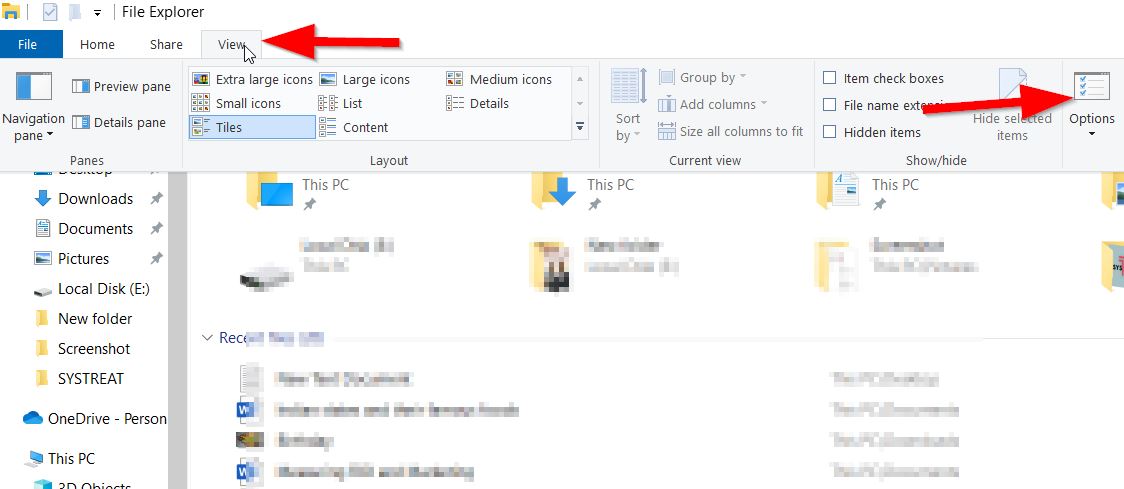

- Then click on Options from the top right side of the screen.
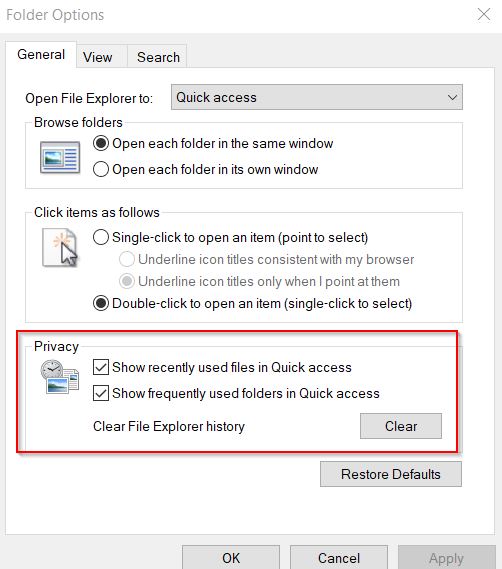

- In the newly opened Folders Options window, locate the Privacy section.
- Then make sure you ticked Show recently used files in Quick Access and Show recently used folders in Quick Access option.
- Now click on the Clear button and click on OK.
Now you have cleared all the history in File Explorer.
Steps to Disable Quick Access in Windows
In case you don’t need Quick Access feature and like to remove it from your system, then follow these steps,
- Open File Explorer on your Windows screen and click on the View tab from the top section.
- Then click on Options from the top right side of the screen.
- In the newly opened Folders Options window, locate the Privacy section.
- Then untick Show recently used files in Quick Access and Show recently used folders in Quick Access option.
- Finally, choose to click on OK.
You can revert this option by ticking the checkbox beside Show recently used files in Quick Access and Show recently used folders in Quick Access option and save changes.
Steps to Remove Quick Access in Windows
Users also have the option in Windows to remove items from Quick Access. Let’s see how;
- Open File explorer and right-click on the item you need to remove from Quick Access.
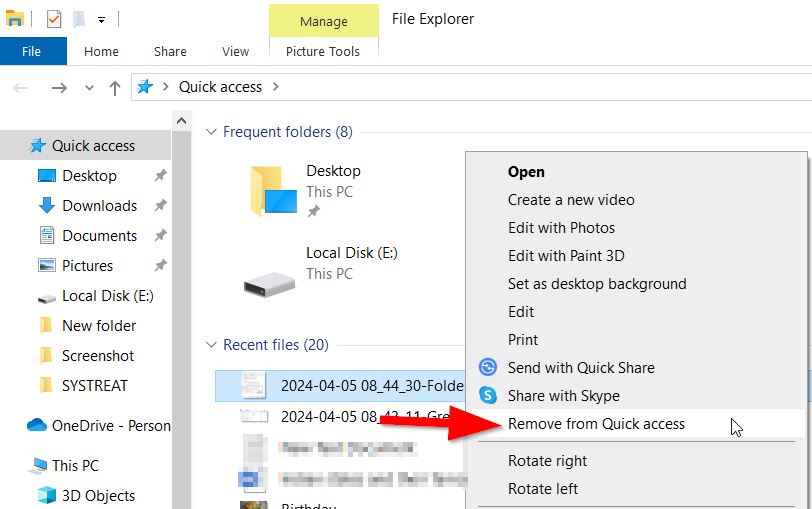

- Then choose the Remove from Quick Access option from the sub-menu.
How to Pin Folders or Files to Quick Access
You can follow these steps to pin folders to Quick Access,
- Open File Explorer and click on the targeted item and click the Home tab.
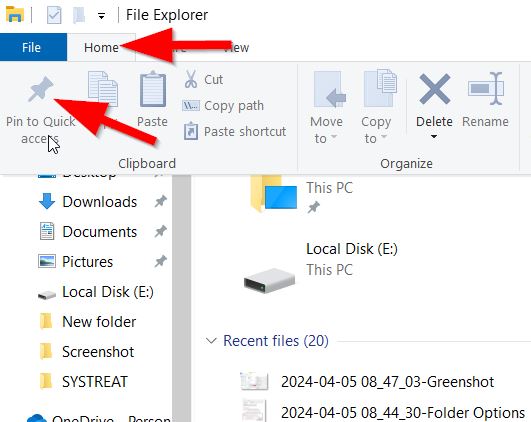

- Then click on Pin to Quick Access option from the left side of the screen.
That’s it. These are the vital steps to clear Quick Access history, pin folders in Access, remove and disable quick access from Windows system.