
Windows 11, Microsoft’s latest operating system, has many innovative features, one of which is to effectively save energy. With this feature, users can save energy and extend the battery life of their laptops. Anyway, listed here are some tricks you can apply to save your Effectively Save Energy in Windows 11 and use the system for a longer period of time.
By making simple changes to your device configuration plans, you can significantly reduce your laptops’ energy usage. This does not affect the performance or efficiency of the system, but rather helps it run longer without any hassle. Then let’s have a look.
Turn ON Power Efficiency Mode in Windows 11
This process will help to limit the specific app/service performance in the system and it will no longer consume more energy. To do so,
- Open Task Manager on your system by pressing Ctrl+Shift+Esc keys altogether.
- In the menu, choose the Processes tab and from the list you can choose the app you need to enable Efficiency mode.
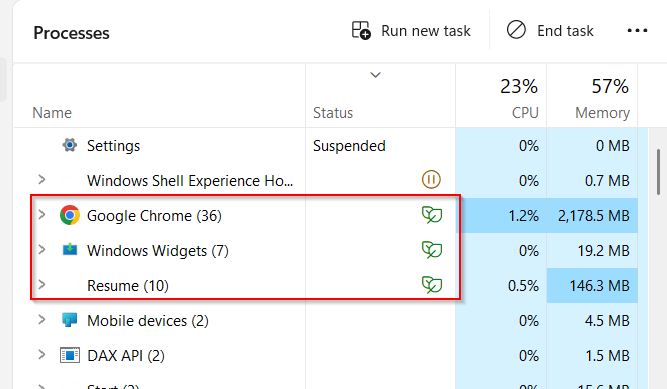

- Right-click on the app and click on the Efficiency mode from the top.
- Once done, you can see a green two leaf icon near the app.
You can also disable the feature if there is any complication or causing a problem.
Turn OFF Visual Effects
Another option you can try is turning off system visual effects to lower. You can lower the transparency, brightness and other similar features.
Adjust Screen Brightness
While adjusting the Screen brightness, it will help to save power and provide longer battery life to your Windows 11 laptop. And it will help your eyes from blue rays and stress. To do so,
- Type “Setting” in the desktop search box and open the Settings menu on the screen.
- Then click on System and move to the Display option from the right menu list.
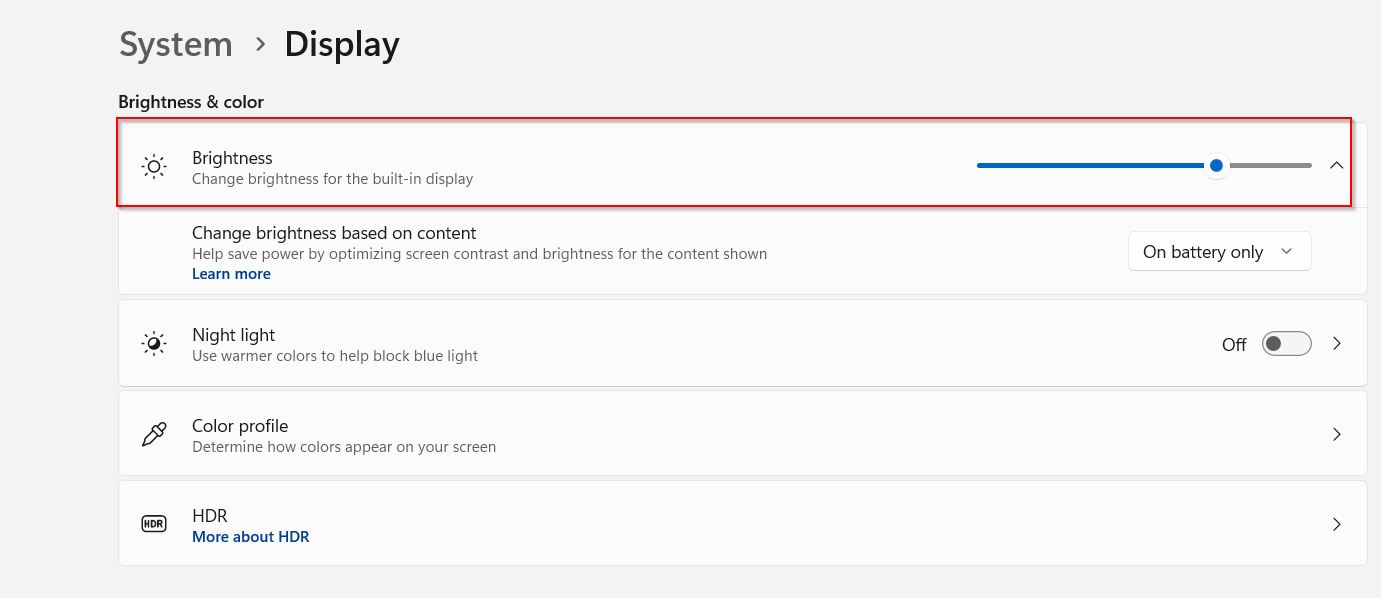

- And click on Display and Color and adjust the brightness using the given bar.
Set Screen/Sleep Timeout
This option will help reduce environmental impact by putting the laptop on low power when not in use, and will also save energy and battery life.. To do so,
- Open Setting menu and click on Power and battery option.
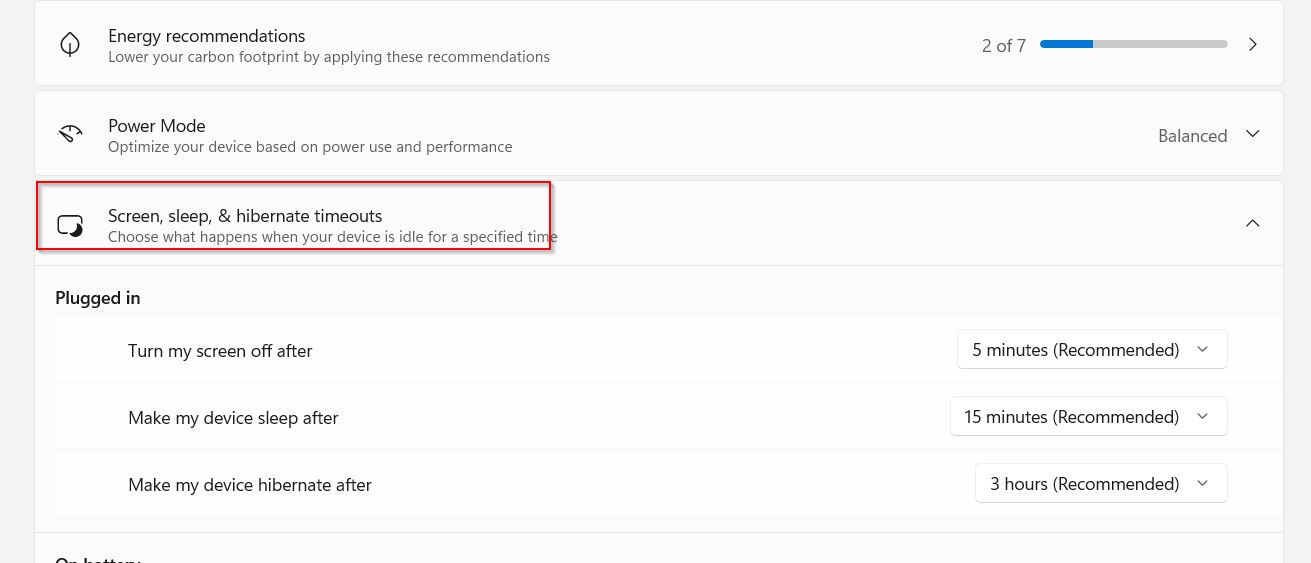

- Then choose Screen, sleep & hibernate timeout option and set the time.
Update the System
If your Windows 11 is not updated with the latest updates released by the Microsoft team then your devices face issues and technical errors. To overcome this you need to update your Windows 11 to the latest update. To do so,
- Open Settings menu and click on the Windows Update option from the left bottom of the screen.
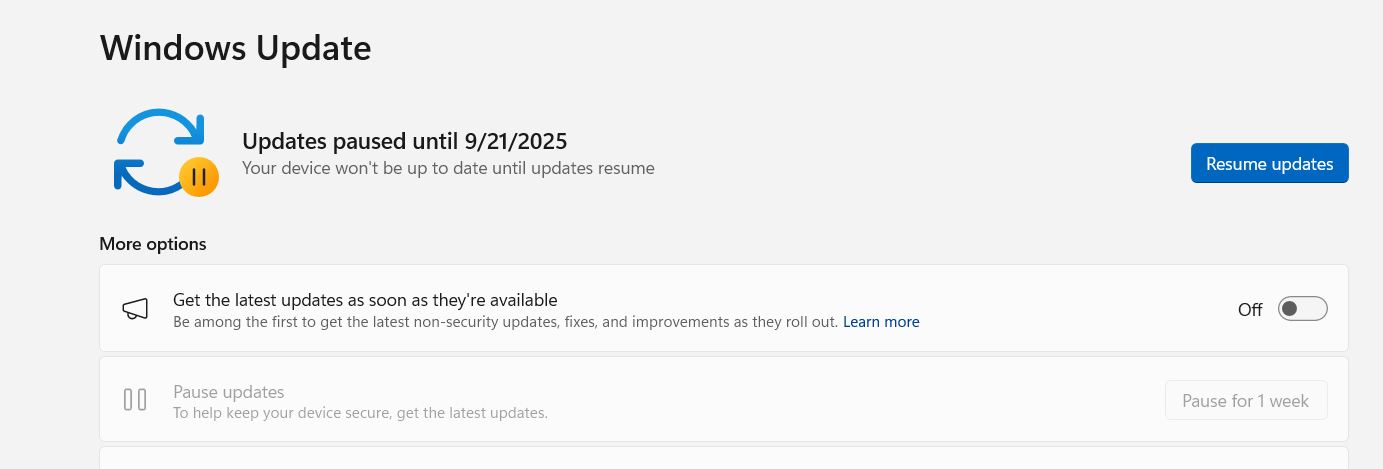

- Then click on the ‘Check for Updates’ button and wait a while until your system is updated to the latest version.
These are the quick and easy solutions you can try to effectively save energy in Windows 11. If none of the above tricks help, then you need to bring your laptop to the nearest service center and reveal your issue to the technician clearly.