
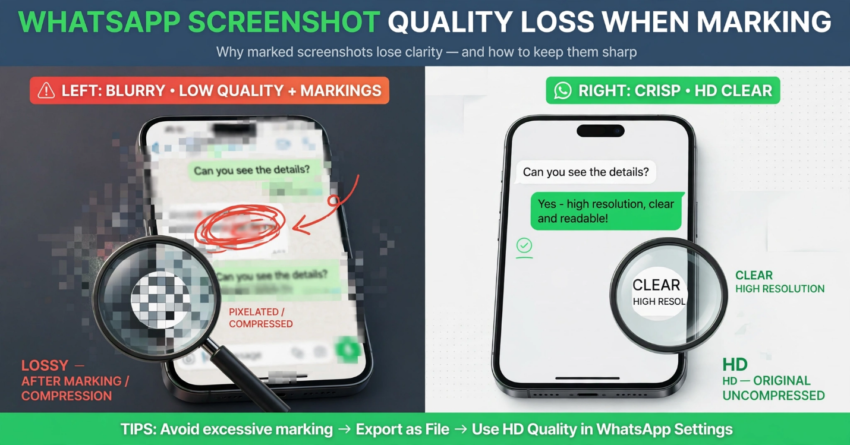
Let’s see why WhatsApp Screenshots Lose Quality After Marking (And How to Fix It). If you’ve ever taken a screenshot, drawn a circle or arrow on it, and shared it on WhatsApp only to find it looks blurry, you are not alone. This is one of the most common problems for IT teams, developers, and support staff.
The Problem: HD Option Disappears
Here’s what actually happens: When you take a screenshot and immediately mark it inside WhatsApp’s built-in editor, WhatsApp treats it as a new, edited image. To save data, it disables the HD option and heavily compresses the image.
I faced this myself when sharing bug screenshots with my team. The client couldn’t read the error message because the quality dropped by almost 70% after I marked it.
Why Does This Happen?
- *1. Double Compression:* WhatsApp already compresses images. When you edit inside, it compresses again.
- *2. Lossy Export:* The built-in drawing tool exports in low resolution.
- *3. HD Lock:* As soon as you use the pen or text tool inside WhatsApp, the HD toggle gets disabled automatically.
The Real Fix (100% Quality)
*METHOD 1: Send as Document – BEST FOR IT TEAMS (Recommended)*
This sends the image as an original file with zero compression.
- 1. Take your screenshot
- 2. Close WhatsApp
- 3. Go to Gallery > Open screenshot > Edit > Mark it there (not in WhatsApp)
- 4. Save it
- 5. WhatsApp > Chat > + > Document > Choose from Gallery > Select your marked image > Send
- Result: Razor-sharp, original PNG quality.
*METHOD 2: Send as HD Image*
- 1. Mark the screenshot OUTSIDE WhatsApp (Gallery / iOS Markup)
- 2. Save it
- 3. Open WhatsApp and attach as normal image
- 4. Now you WILL see the HD button on top. Tap HD > Send.
This only works if you did NOT edit inside WhatsApp.
Pro Tips for Developers
– Bug Reporting: Always send screenshots as Document when sharing code/errors
– PC: Use ShareX or Greenshot – they save as PNG
– Permanent Fix: WhatsApp Settings > Storage and Data > Media Upload Quality > HD Quality
Conclusion:
Stop marking inside WhatsApp. Remember the rule: *Mark Outside, Send as Document.* It will save you from endless “please send again, it’s blurry” messages.
Author




Sijo Thomas is a web developer, SEO-focused content creator and digital tools builder at Smart Web Solutions. He creates practical web tools, technology guides and helpful online resources covering web development, WordPress, SEO, artificial intelligence and everyday digital solutions. His work focuses on making technology easier to understand and providing useful, user-friendly solutions for individuals and businesses.
LinkedIn:https://www.linkedin.com/in/sijo-thomas-it-seo-and-dm/