
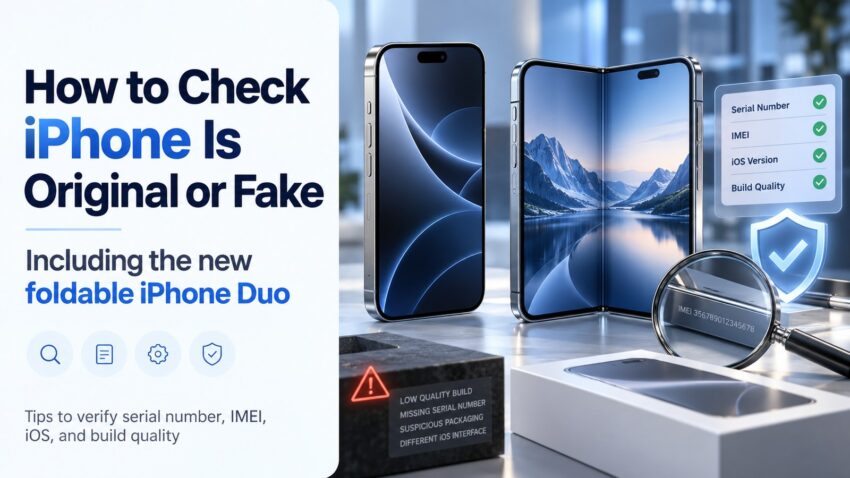
Do you want to know how to check whether an iPhone is original, fake, or refurbished? This updated 2026 guide explains the key checks you should complete before buying a new or used iPhone. Start by finding the model details, serial number, and IMEI or EID in the device settings, then verify the serial number through Apple’s official coverage page.
This is an important step before purchasing an iPhone, especially from a second-hand seller or an unfamiliar online marketplace. A few quick checks can help you avoid misleading listings and make a more confident buying decision.
Here are the most useful checks you should know.
Free Tool: Identify Your iPhone Model-iPhone Model Checker
Best Ways to Check Whether an iPhone Is Original, Fake, or Refurbished in 2026
Free Tool to Check Whether an iPhone Is Original, Fake – iphone-authenticity-checker-tool
- Open the iPhone settings and check the model details, serial number, and IMEI or EID.
- Visit Apple’s official Check Coverage page and validate the serial number.
- Inspect the phone physically and review Parts and Service History when buying a used or repaired iPhone.
First, find your iPhone model details and serial number. These checks are useful for current models, including the iPhone 17 family.
How to Find Your iPhone Model Number, Serial Number, and IMEI
- Go to iPhone Settings > General > About.
- In the About section, look for the Model Number, Serial Number, and IMEI or EID, depending on the device.
Apple shows the part number beside Model Number first. Tap it to view the actual model number used to identify the iPhone model.
- Check the Serial Number, IMEI, and Model Details
A genuine iPhone should display device identifiers in Settings, and those details should be consistent with the box or purchase records when available.
The model number helps identify the exact iPhone version, but it should not be treated as a complete authenticity test on its own.
- Use the model information to confirm whether the device matches the seller’s description, including the generation, storage option, and region-specific details where relevant.
- Use the serial number to check the device on Apple’s official coverage page and confirm that Apple recognizes the product record.
- The IMEI or EID is also useful when checking cellular-device details, service eligibility, or matching the phone with the packaging.
- For a used or repaired iPhone, open Settings > General > About and review Parts and Service History if it appears. This can show whether supported components are marked Genuine, Used, Unknown, or Unverified.
For the best result, combine all checks: serial-number validation, device identifiers, physical inspection, and Parts and Service History. Together, they give a stronger picture than any single check alone.
- Verify the iPhone on Apple’s Official Website Using the Serial Number
- Open the Settings app on the iPhone.
- Go to General and then tap About.
- Find the Serial Number and touch and hold it to copy.
- Copy the serial number exactly as shown on the device.
- Open Apple’s official Check Coverage page, paste the serial number, and complete the security code or CAPTCHA.
- https://checkcoverage.apple.com/
- After you submit the information, Apple’s page will show the available device coverage details if the serial number is recognized.
- A valid result means Apple recognizes the serial number and can display coverage information for that device record.
This check is helpful when buying an iPhone for the first time or comparing a seller’s claim with Apple’s official record. However, it should be used together with the physical and software checks below before making a purchase.
Physical Things to Check for iPhone Authenticity / How to Spot a Suspicious iPhone
- Apple products are usually sold with neat, high-quality packaging. Poor printing, unusual fonts, or low-quality box materials can be warning signs.
- Examine the screws, buttons, camera alignment, speaker grills, and overall finish. Loose parts or visibly inconsistent build quality deserve closer attention.
- Real iPhones do not include a MicroSD card slot. An extra memory-card slot is a major red flag.
- Check the operating system. A genuine iPhone should run iOS, not an Android-based interface made to look like iOS.
- Test core iPhone features such as Face ID or Touch ID where applicable, Siri, the App Store, camera functions, and system settings.
- Connect the iPhone to a Mac or PC if needed. Depending on the computer, Apple may recognize it through Finder, the Apple Devices app, or iTunes.
- Check whether built-in iOS apps and settings behave normally. Missing or poorly copied apps can be a sign that the device is not genuine.
If you still suspect the device is not original, visit an Apple Store or an Apple Authorized Service Provider for a professional inspection and diagnostic check.
Here’s a more natural, less AI-sounding version with smoother flow and simpler wording.
How to Check If an iPhone Duo Is Original or Fake
Apple’s new iPhone Duo has brought something completely different to the iPhone lineup — a foldable design. But whenever Apple launches a major new product, fake versions and lookalike devices usually start appearing online very quickly.
So, if you’re planning to buy an iPhone Duo from an online marketplace, local mobile shop, or second-hand seller, it’s worth checking the phone properly before making the payment.
The iPhone Duo comes with a 5.4-inch outer display and a larger 7.6-inch foldable inner display. Both screens support ProMotion with refresh rates of up to 120Hz. It is powered by Apple’s A20 Pro chip and runs iOS designed specifically to make better use of the foldable screen.
The phone is available in Star White and Night Sky, with storage options ranging from 256GB to 2TB.
iPhone Duo Price and Release Date in UAE
The iPhone Duo starts at AED 8,499 in the UAE.
Pre-orders are scheduled to begin on October 16, 2026, while the phone will officially go on sale from October 23, 2026.
This is worth remembering if you’re shopping online. If someone claims to have plenty of brand-new iPhone Duo units available before the official release date, be careful. It could be a fake device, an unofficial import, or simply a misleading listing.
How to Check Whether an iPhone Duo Is Genuine
The easiest place to start is Settings > General > About.
Here you should be able to see the phone’s model information, serial number, IMEI, EID, and storage capacity.
Take the serial number and check it on Apple’s official Check Coverage website. A serial number alone does not guarantee that a phone is genuine, but it is an important first step.
You should also spend a few minutes actually using the phone.
Open the App Store, test Siri, check Apple Account settings, open Find My, and make sure the device is running genuine iOS rather than an Android interface designed to look like an iPhone.
The folding display is another obvious thing to test. Open and close the phone several times and check both the outer screen and the larger inner display. The hinge should feel solid and smooth.
The iPhone Duo also uses Touch ID built into the side button, so make sure fingerprint authentication works correctly.
Another important detail is the SIM setup. The iPhone Duo is eSIM-only, so there should not be a normal physical SIM-card slot. If someone shows you an “iPhone Duo” with a removable SIM tray, that is a major warning sign.
Check the Build Quality Too
Fake phones often look convincing in photos, but they usually feel different once you hold them.
Pay attention to the hinge, buttons, titanium frame, camera module, speakers, USB-C port, and overall finish. Poorly aligned cameras, loose buttons, rough edges, low-quality displays, or a weak folding mechanism can all be signs that something is wrong.
If you’re buying a used or repaired device, also check Settings > General > About > Parts and Service History, if the information is available.
And whenever possible, ask the seller for the original invoice. The IMEI and serial-number details on the invoice should match the information shown on the phone.
Fake Foldable iPhones Can Look Surprisingly Real
A fake iPhone does not always look obviously fake.
Some Android phones can copy Apple-style icons, wallpapers, menus, lock screens, and even parts of the Settings app. A foldable phone may also be designed to look almost identical to the iPhone Duo from the outside.
That’s why you should never rely on appearance alone.
Check the serial number, IMEI, Apple services, operating system, hardware, eSIM support, and purchase documents together.
And if the price looks far too cheap compared with Apple’s official price, be extra careful. A huge discount on a newly launched iPhone is usually a good reason to investigate further.
Does the iPhone Duo Have a SIM Card Slot?
No. The iPhone Duo uses eSIM only.
It can store multiple eSIM profiles and supports two active eSIMs. So, if you see an iPhone Duo with a regular removable SIM tray, check the device carefully before buying it.
Quick iPhone Duo Specs to Check
The iPhone Duo comes with a 7.6-inch foldable inner display, 5.4-inch outer display, A20 Pro chip, 48MP Dual Fusion camera system, Touch ID, titanium body, IP68 water and dust resistance, USB-C, MagSafe, and eSIM connectivity.
Knowing these basic specifications can make it much easier to spot a suspicious device when buying from an unofficial seller.
iPhone 17 Price in UAE
The iPhone 17 price in the UAE starts from AED 3,399.
The iPhone Air price in the UAE starts from AED 4,299.
The iPhone 17 Pro and iPhone 17 Pro Max lineup starts from AED 4,699.
The iPhone 17e price in the UAE starts from AED 2,599.
The Major Differences Between iPhone 16 and iPhone 17
Apple’s latest iPhone family includes iPhone 17, iPhone Air, iPhone 17 Pro, iPhone 17 Pro Max, and the newer iPhone 17e model.
Here are some of the most important updates when comparing the regular iPhone 17 with the previous-generation iPhone 16.
iPhone 17 Camera
The iPhone 17 introduces a 48MP Dual Fusion camera system, including a 48MP Fusion Main camera and a 48MP Fusion Ultra Wide camera. This improves wide-angle and macro detail compared with the prior generation.
iPhone 17 Display
The regular iPhone 17 moves to a 6.3-inch display and adds ProMotion technology, creating a smoother scrolling and viewing experience.
iPhone 17 Processor
The iPhone 17 is powered by the A19 chip, while the iPhone 16 uses the A18 chip. The newer processor is designed for stronger overall performance and efficiency.
iPhone 17 Front Camera
The iPhone 17 adds an 18MP Center Stage front camera, a major update for selfies, video calls, and flexible framing.
iPhone 17 Lineup
The 2026 Apple iPhone range now includes standard, ultra-thin, Pro, Pro Max, and value-focused options through the iPhone 17 family.
iPhone 17 Price Positioning
The iPhone 17 starts at a lower price than the premium iPhone Air and iPhone 17 Pro models, while the iPhone 17e serves as the most affordable current-generation option.
iPhone 17 Colors
The standard iPhone 17 is available in five finishes:
- Lavender
- Sage
- Mist Blue
- White
- Black.
Upgrading from an iPhone 16 to an iPhone 17 may make sense for users who want the newer display, front-camera improvements, and camera upgrades. Users with older iPhones may notice an even bigger jump in everyday experience.
Historical iPhone 15 Pro vs iPhone 16 Pro Price Comparison
Conclusion
By following the steps above, you can make a more informed decision before buying an iPhone. Check the serial number through Apple, confirm the model and IMEI details, inspect the phone carefully, and review Parts and Service History for used or repaired devices. For additional queries, send an email to info@smartwebsolutions.org with the phone serial number.
Related QA: How to Spot a Fake iPhone, Major Differences Between Real and Fake iPhones, Identify a Fake iPhone, Things to Check Before Buying a Second-Hand iPhone Online, Steps to Identify an Original iPhone Before You Buy, Determine Fake vs. Real iPhone, Find the Serial Number or IMEI on Your iPhone, How to Check if iPhone 17 Is Original, Verify iPhone Authenticity, How to Know Whether an iPhone Is Original with Its Model Details, Authenticate an iPhone, Spot a Fake iPhone, How to Check iPhone Is Original with Serial Number in UAE, Used iPhone in Dubai.
Also, Check >>> Buying used iPhone-things you need to check before
Tags: APPLE SERIAL NUMBER CHECK, iPhone Serial Number Lookup, iPhone model number check original, Identify your iPhone model, iPhone 17 serial number check, iPhone 17 original or fake checker, iPhone 17 fake checker, iPhone 17 price in UAE, iPhone 17 Pro, iPhone 17 Pro Max, iPhone Air, iPhone 17e, Apple iPhone authenticity check, How to Check if Your iPhone Is Original or Fake: A Complete Guide
how to check if an iPhone is original using IMEI, iPhone original check code, iPhone checker, iPhone original or fake check, how to check if an iPhone is original or refurbished, how to check if an iPhone is original using the serial number, how to check iPhone serial number, how to check iPhone Parts and Service History.
how can I check if my iPhone is real, fake, or refurbished
Do you want to know how to check whether an iPhone is original, fake, or refurbished? This updated 2026 guide explains the key checks you should complete before buying a new or used iPhone. Start by finding the model details, serial number, and IMEI or EID in the device settings, then verify the serial number through Apple’s official coverage page.
This is an important step before purchasing an iPhone, especially from a second-hand seller or an unfamiliar online marketplace. A few quick checks can help you avoid misleading listings and make a more confident buying decision.
Here are the most useful checks you should know.
Best Ways to Check Whether an iPhone Is Original, Fake, or Refurbished in 2026
- Open the iPhone settings and check the model details, serial number, and IMEI or EID.
- Visit Apple’s official Check Coverage page and validate the serial number.
- Inspect the phone physically and review Parts and Service History when buying a used or repaired iPhone.
First, find your iPhone model details and serial number. These checks are useful for current iPhone models, including Apple’s new foldable iPhone Duo and the iPhone 17 family.
How to Find Your iPhone Model Number, Serial Number, and IMEI
- Go to iPhone Settings > General > About.
- In the About section, look for the Model Number, Serial Number, and IMEI or EID, depending on the device.
Apple shows the part number beside the Model Number first. Tap it to view the actual model number used to identify the iPhone model.
1. Check the Serial Number, IMEI, and Model Details
A genuine iPhone should display device identifiers in Settings, and those details should be consistent with the box or purchase records when available.
The model number helps identify the exact iPhone version, but it should not be treated as a complete authenticity test on its own.
- Use the model information to confirm whether the device matches the seller’s description, including the generation, storage option, and region-specific details where relevant.
- Use the serial number to check the device on Apple’s official coverage page and confirm that Apple recognizes the product record.
- The IMEI or EID is also useful when checking cellular-device details, service eligibility, or matching the phone with the packaging.
- For a used or repaired iPhone, open Settings > General > About and review Parts and Service History if it appears. This can show whether supported components are marked Genuine, Used, Unknown, or Unverified.
For the best result, combine all checks: serial-number validation, device identifiers, physical inspection, and Parts and Service History. Together, they give a stronger picture than any single check alone.
2. Verify the iPhone on Apple’s Official Website Using the Serial Number
- Open the Settings app on the iPhone.
- Go to General and then tap About.
- Find the Serial Number and touch and hold it to copy.
- Copy the serial number exactly as shown on the device.
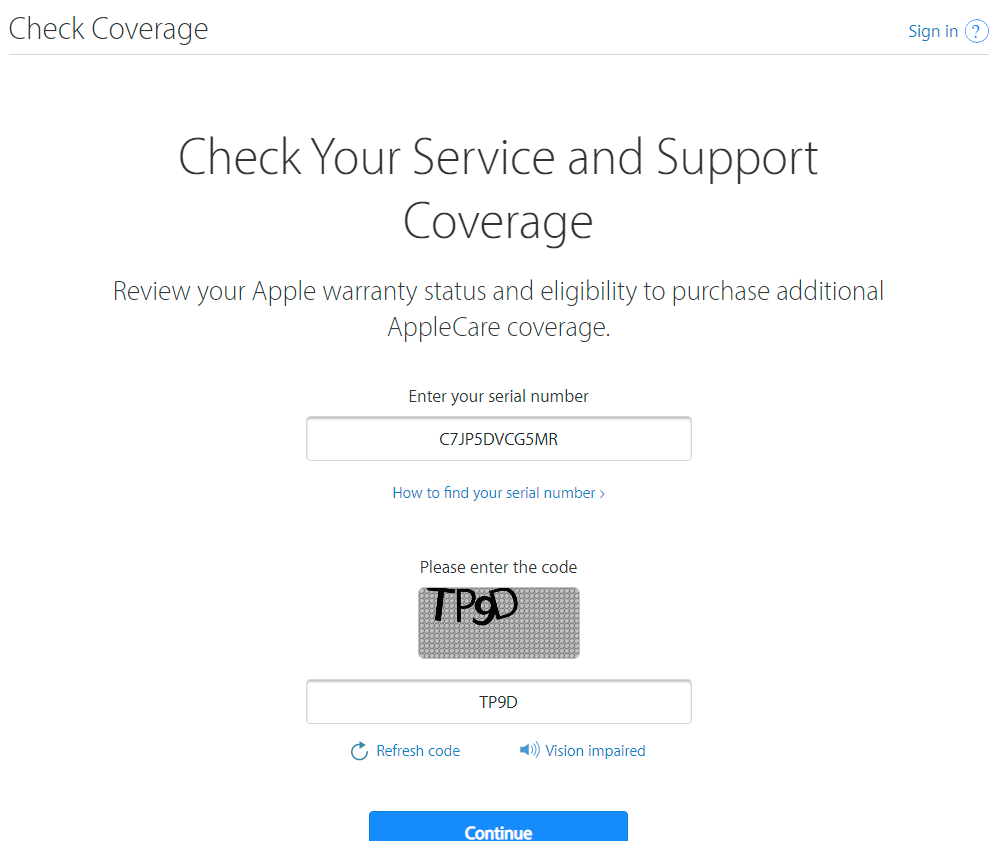
- Open Apple’s official Check Coverage page, paste the serial number, and complete the security code or CAPTCHA.
- https://checkcoverage.apple.com/
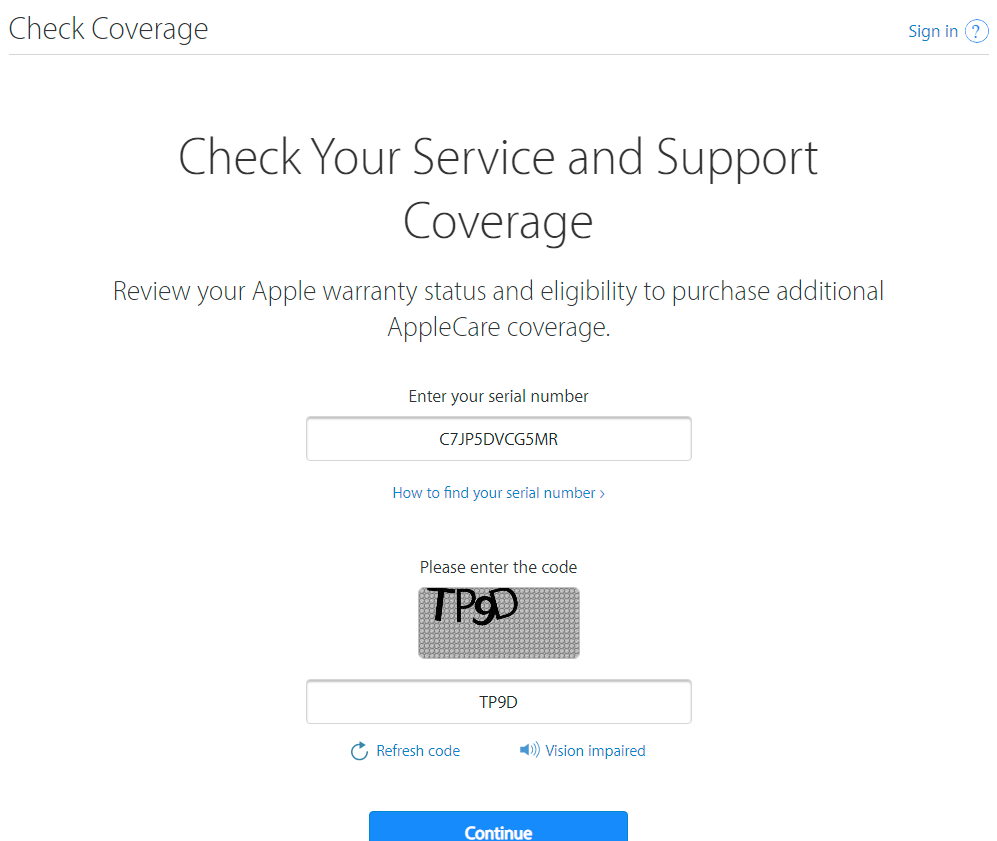

- After you submit the information, Apple’s page will show the available device coverage details if the serial number is recognized.
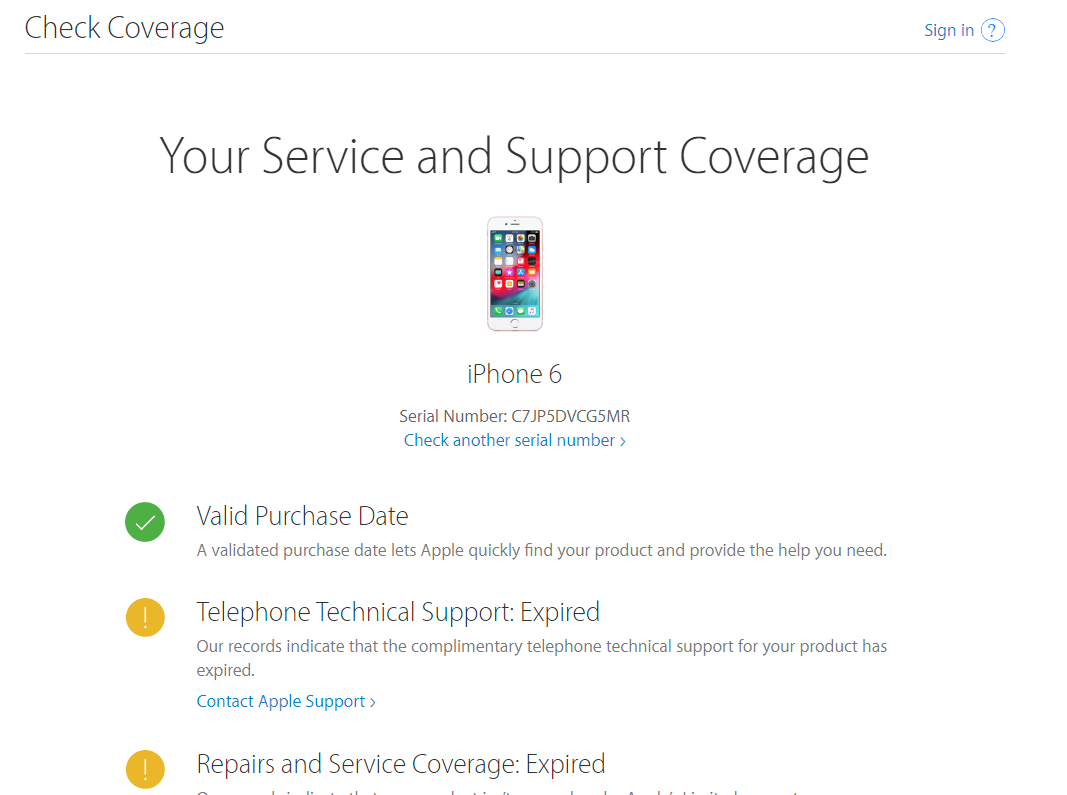

- A valid result means Apple recognizes the serial number and can display coverage information for that device record.
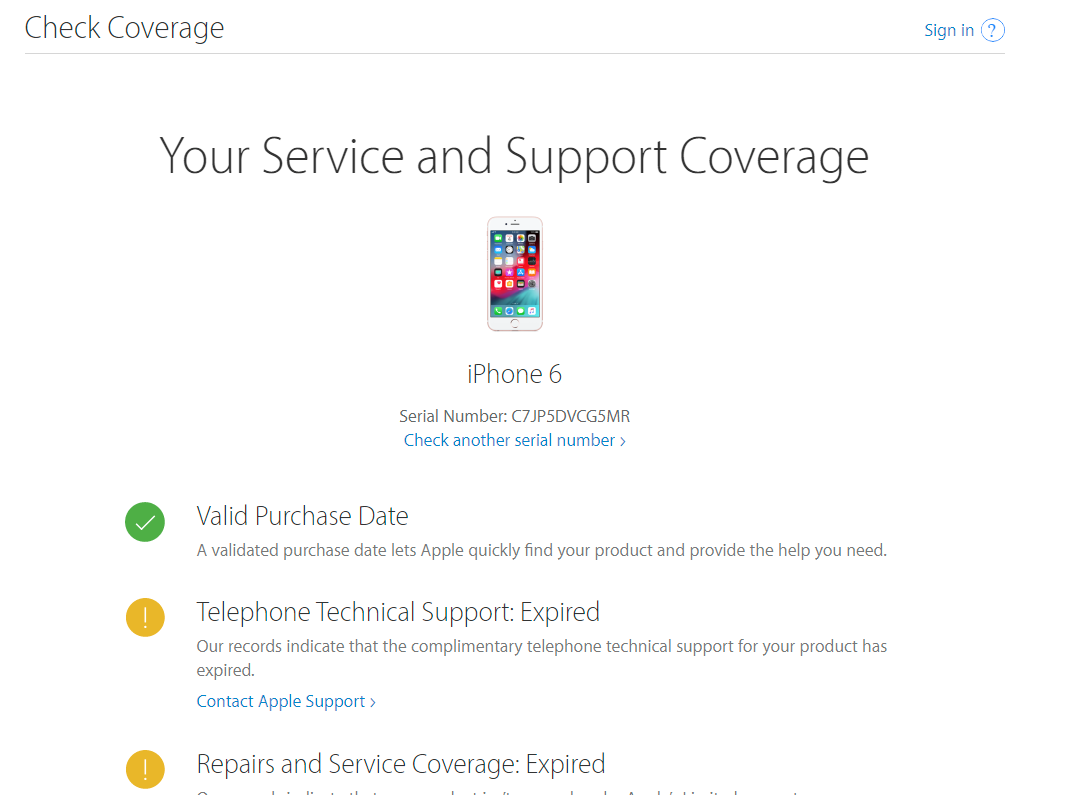
This check is helpful when buying an iPhone for the first time or comparing a seller’s claim with Apple’s official record. However, it should be used together with the physical and software checks below before making a purchase.
Physical Things to Check for iPhone Authenticity / How to Spot a Suspicious iPhone
- Apple products are usually sold with neat, high-quality packaging. Poor printing, unusual fonts, or low-quality box materials can be warning signs.
- Examine the screws, buttons, camera alignment, speaker grills, and overall finish. Loose parts or visibly inconsistent build quality deserve closer attention.
- Real iPhones do not include a MicroSD card slot. An extra memory-card slot is a major red flag.
- Check the operating system. A genuine iPhone should run iOS, not an Android-based interface made to look like iOS.
- Test core iPhone features such as Face ID or Touch ID where applicable, Siri, the App Store, camera functions, and system settings.
- Connect the iPhone to a Mac or PC if needed. Depending on the computer, Apple may recognize it through Finder, the Apple Devices app, or iTunes.
- Check whether built-in iOS apps and settings behave normally. Missing or poorly copied apps can be a sign that the device is not genuine.
If you still suspect the device is not original, visit an Apple Store or an Apple Authorized Service Provider for a professional inspection and diagnostic check.
iPhone 17 Price in UAE
The iPhone 17 price in the UAE starts from AED 3,399.
The iPhone Air price in the UAE starts from AED 4,299.
The iPhone 17 Pro and iPhone 17 Pro Max lineup starts from AED 4,699.
The iPhone 17e price in the UAE starts from AED 2,599.
The Major Differences Between iPhone 16 and iPhone 17
Apple’s latest iPhone family includes iPhone 17, iPhone Air, iPhone 17 Pro, iPhone 17 Pro Max, and the newer iPhone 17e model.
Here are some of the most important updates when comparing the regular iPhone 17 with the previous-generation iPhone 16.
iPhone 17 Camera
The iPhone 17 introduces a 48MP Dual Fusion camera system, including a 48MP Fusion Main camera and a 48MP Fusion Ultra Wide camera. This improves wide-angle and macro detail compared with the prior generation.
iPhone 17 Display
The regular iPhone 17 moves to a 6.3-inch display and adds ProMotion technology, creating a smoother scrolling and viewing experience.
iPhone 17 Processor
The iPhone 17 is powered by the A19 chip, while the iPhone 16 uses the A18 chip. The newer processor is designed for stronger overall performance and efficiency.
iPhone 17 Front Camera
The iPhone 17 adds an 18MP Center Stage front camera, a major update for selfies, video calls, and flexible framing.
iPhone 17 Lineup
The 2026 Apple iPhone range now includes standard, ultra-thin, Pro, Pro Max, and value-focused options through the iPhone 17 family.
iPhone 17 Price Positioning
The iPhone 17 starts at a lower price than the premium iPhone Air and iPhone 17 Pro models, while the iPhone 17e serves as the most affordable current-generation option.
iPhone 17 Colors
The standard iPhone 17 is available in five finishes:
- Lavender
- Sage
- Mist Blue
- White
- Black.
Upgrading from an iPhone 16 to an iPhone 17 may make sense for users who want the newer display, front-camera improvements, and camera upgrades. Users with older iPhones may notice an even bigger jump in everyday experience.
Historical iPhone 15 Pro vs iPhone 16 Pro Price Comparison

Conclusion
By following the steps above, you can make a more informed decision before buying an iPhone. Check the serial number through Apple, confirm the model and IMEI details, inspect the phone carefully, and review Parts and Service History for used or repaired devices. For additional queries, send an email to info@smartwebsolutions.org with the phone serial number.
Related QA: How to Spot a Fake iPhone, Major Differences Between Real and Fake iPhones, Identify a Fake iPhone, Things to Check Before Buying a Second-Hand iPhone Online, Steps to Identify an Original iPhone Before You Buy, Determine Fake vs. Real iPhone, Find the Serial Number or IMEI on Your iPhone, How to Check if iPhone 17 Is Original, Verify iPhone Authenticity, How to Know Whether an iPhone Is Original with Its Model Details, Authenticate an iPhone, Spot a Fake iPhone, How to Check iPhone Is Original with Serial Number in UAE, Used iPhone in Dubai.
Also, Check >>> Buying used iPhone-things you need to check before
Tags: APPLE SERIAL NUMBER CHECK, iPhone Serial Number Lookup, iPhone model number check original, Identify your iPhone model, iPhone 17 serial number check, iPhone 17 original or fake checker, iPhone 17 fake checker, iPhone 17 price in UAE, iPhone 17 Pro, iPhone 17 Pro Max, iPhone Air, iPhone 17e, Apple iPhone authenticity check, How to Check if Your iPhone Is Original or Fake: A Complete Guide
how to check if an iPhone is original using IMEI, iPhone original check code, iPhone checker, iPhone original or fake check, how to check if an iPhone is original or refurbished, how to check if an iPhone is original using the serial number, how to check iPhone serial number, how to check iPhone Parts and Service History.
how can I check if my iPhone is real, fake, or refurbished
iPhone serial number check, How to check if iPhone is original using IMEI, How to check if iPhone is original or refurbished, iPhone checker, Apple serial number check, iPhone IMEI check, How to check if iPhone is original without opening the box, Apple IMEI check
iPhone serial number check, How to check if iPhone is original using IMEI, How to check if iPhone is original or refurbished, iPhone checker, Apple serial number check, iPhone IMEI check, How to check if iPhone is original without opening the box, Apple IMEI check