Menu
Smart Web Solutions
  • Home
  • General
  • Web Tips
    • Web development
    • PHP
    • zendframework
    • SocialEngine
    • SQL
    • javaScript
  • Internet
  • Free Web Tools
  • Contact Us
Smart Web Solutions
share iPhone WiFi password

Share Wi-Fi password from your iPhone, iPad, or iPod touch

Posted on 30th July 2019 by Sijo Thomas

Let’s check, how to Share your iPhone Wi-Fi password with others (Friends, Family, Company Mates).

You have to set up both devices to get ready to share your wifi
  • Turn On Wi-Fi and Bluetooth on Both Devices.
  • Personal Hotspot on, turn it off.
  • Add your Apple ID to the other person’s Contacts app. Edit the contact details and add iCloud ID on another person’s iPhone.
  • Take another person’s device nearby, within Bluetooth and Wi-Fi range.
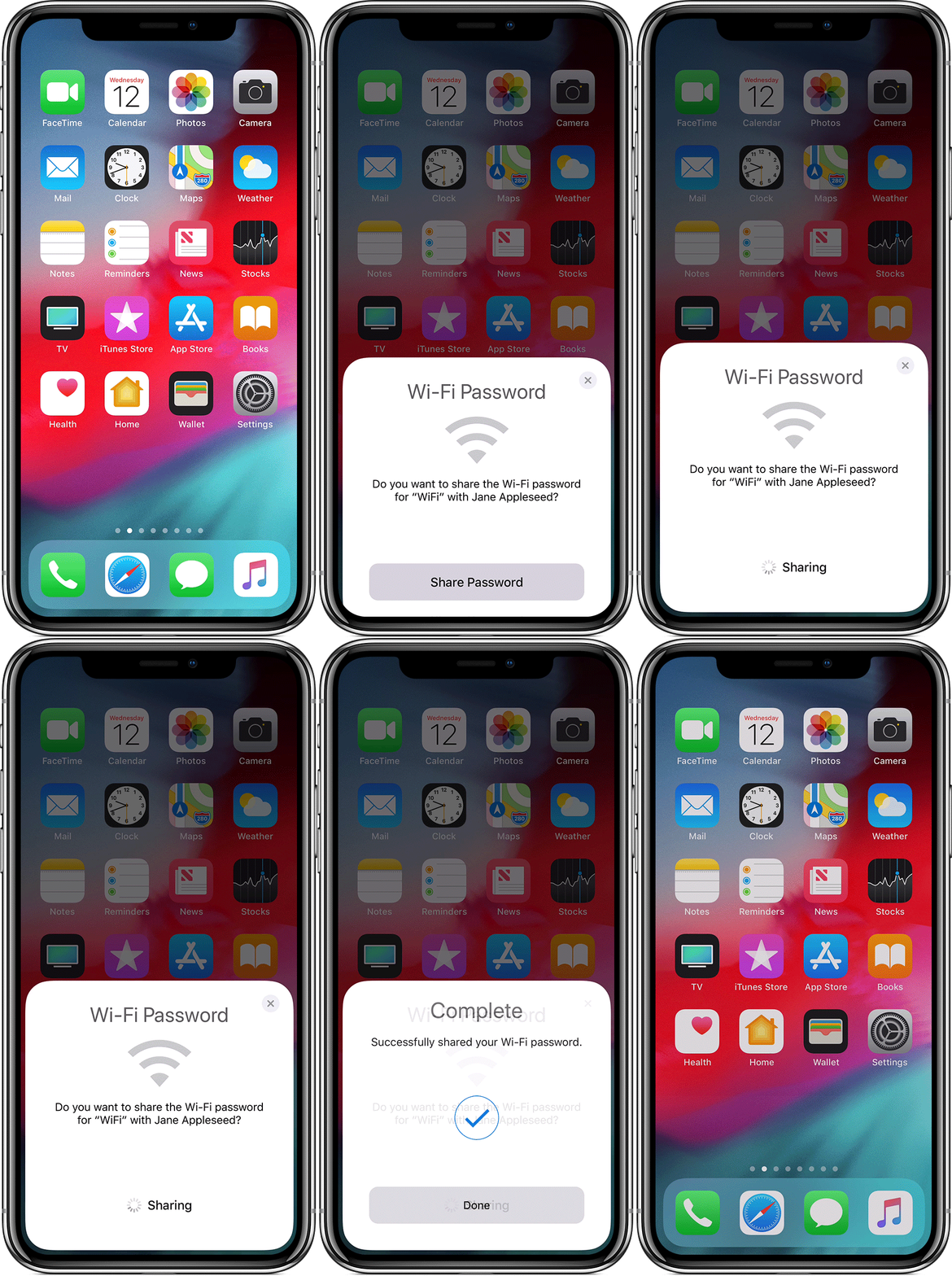
  1. Make sure your device is unlocked and connected to the Wi-Fi network.
  2. Select the same Wi-Fi network on your friend or family member’s device
  3. On your device, tap Share Password, then tap Done.
share iPhone WiFi password

If you don’t know the password of your connected wifi still you have to share it. This is the easy and best way to Share your iPhone Wi-Fi password.

Also, check the below article related To iPhone Tips and Tricks

How to Check iPhone is Original or Fake

Author

  • sijo thomas
    Sijo Thomas

    Sijo Thomas is a web developer, SEO-focused content creator and digital tools builder at Smart Web Solutions. He creates practical web tools, technology guides and helpful online resources covering web development, WordPress, SEO, artificial intelligence and everyday digital solutions. His work focuses on making technology easier to understand and providing useful, user-friendly solutions for individuals and businesses.

    LinkedIn:https://www.linkedin.com/in/sijo-thomas-it-seo-and-dm/

    Facebook:https://www.facebook.com/sijothomasmaprayil

    Instagram:https://www.instagram.com/s14_sijothomas/

Post Views: 606

Related posts:

  1. Buying a used iPhone-things you need to check before
  2. How to Free Up Space On Your iPhone and iPad-8 Simple Tips Explained Here
  3. How to Transfer Your old Mac Content to a new Mac – Migration Steps
  4. How to Check Dell Laptop is Original or Fake- Best Tool from official Dell-2023
  • how to share wifi from iphone to iphone
  • how to share wifi from iphone to mac
  • how to share wifi iphone
  • how to share wifi password from iphone
  • how to share wifi password from iphone to android
  • iphone won't share wifi password
  • share wifi password iphone not working
  • share wifi password mac
  • Leave a Reply Cancel reply

    Your email address will not be published. Required fields are marked *

    Categories

    Android Apple MacBook Pro Artificial Intelligence(AI) Automobile Banking Business Computer Cybersecurity Digital Marketing Etisalat Finance Gaming General General Knowledge Google Health and Medicine Hosting Instagram-Reels Instagram Tips Internet iPhone Malayalam Microsoft Mobile Phones Movies Networking News Photoshop Tips PHP PUBG Mobile SEO SMO Softwares Technology TikTok Travel and Tourism UAE Guidelines uae news Web development Website Development Web Tips WhatsApp Windows windows 10 wordpress
    •  Cybersecurity tips for small businesses
      by Smart Techie
    •  How to make a Virtual Zero Balance Bank Account in India
      by Sijo Thomas
    •  Most Popular Foods in America
      by Smart Techie
    • 10 Best Remote Job Websites to Find Work-From-Home Jobs
      by Sijo Thomas
    • 10 Steps to Building a Solid Data Management Plan
      by Sijo Thomas
    • 10 Ways to Tell I am Not Coming to Office Today
      by Smart Techie
    • 20 Years of World of Warcraft: How the MMO Keeps Reinventing Itself
      by Sijo Thomas
    • 3 Easy Ways to Grow Your Business Through Instagram
      by Sijo Thomas
    • 5 Best Jesus Piece Pendants
      by Smart Techie
    • 5 Best Search Engines in the World
      by Smart Techie
    • 5 Company Swag Ideas for Employees To Celebrate Corporate Wins
      by Sijo Thomas
    copyrights ©SWS 2017-2026
    ©2026 Smart Web Solutions | Powered by Superb Themes